02-2886-6633·LINE @barcodehub·sales@junji.com.tw
English

Technical support

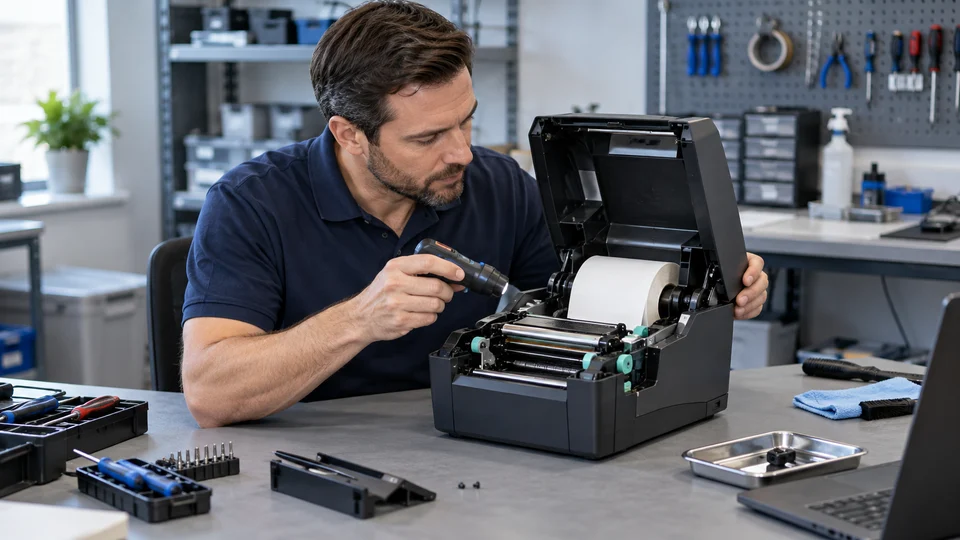
Technical support and repair

If your barcode printer, scanner or mobile computer has a problem, check the common issues below first. Many problems can be solved on your own. If not, submit a repair request online or call us. We will tell you whether it can be repaired, how it will be inspected, and the quotation.

  • Machines not bought from us are welcome too
  • Barcode printers, scanners and mobile computers of all brands
  • Discontinued models can be sent in for repair inquiries too

Repair process

Repair time depends on the fault and parts availability; we'll let you know when we quote.

  1. Submit onlineEnter the model, serial number and fault, and attach photos or videos if possible.
  2. Initial replyAfter reviewing, we reply whether we can handle it and the suggested inspection method; some issues can be solved by phone or remotely.
  3. Send in or on-siteChoose shipping, drop-off or on-site inspection as is convenient for you. Pickup/delivery and fees are quoted based on the actual situation.
  4. Inspection and quoteAfter inspection we tell you the cause, the parts to replace and the repair cost, and start repairs only after you agree. Whether an inspection fee applies is quoted based on the actual situation.
  5. Repair and testingAfter repair we test print and test scan to confirm everything works.
  6. Return and closeReturned as agreed, with a repair record.

Equipment we can repair

Machines not purchased from us, and brands not sold on this site, are also welcome. Ask first, and we will reply once we confirm whether we can handle it.

Barcode PrintersDesktop and industrial; printheads, platen rollers, sensors, mainboards, etc.
Barcode ScannersHandheld and fixed-mount; read failures, disconnections, button or cradle faults, etc.
Mobile ComputersBatteries, screens, scan engines, charging cradles, etc.

Common issues: try these yourself first

The following are general suggestions. Operation varies slightly by model; follow your user manual.

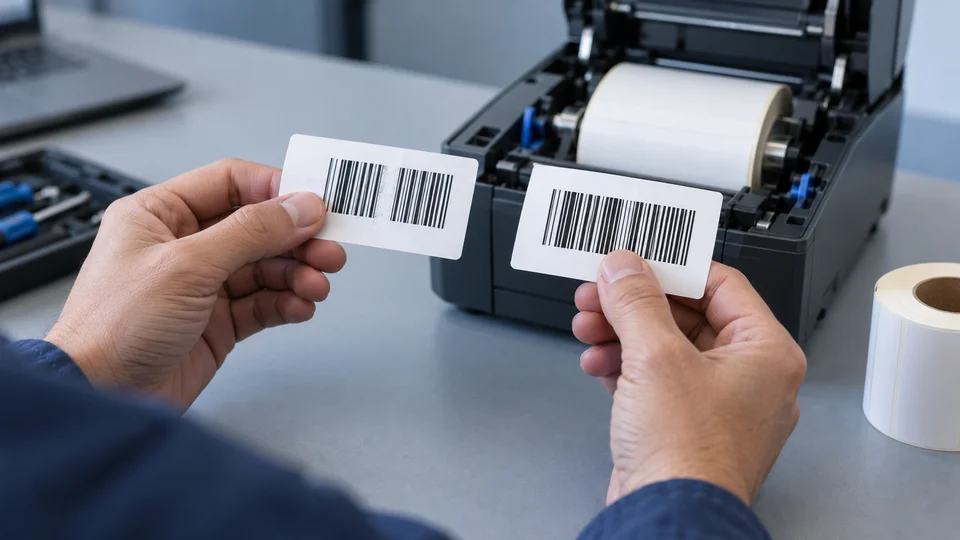
White lines or vertical gaps in the printout

Usually the printhead is dirty or damaged. First clean the printhead with a cleaning pen or an alcohol swab (after it has cooled down). If white lines remain in the same position after cleaning, the printhead may need replacing.

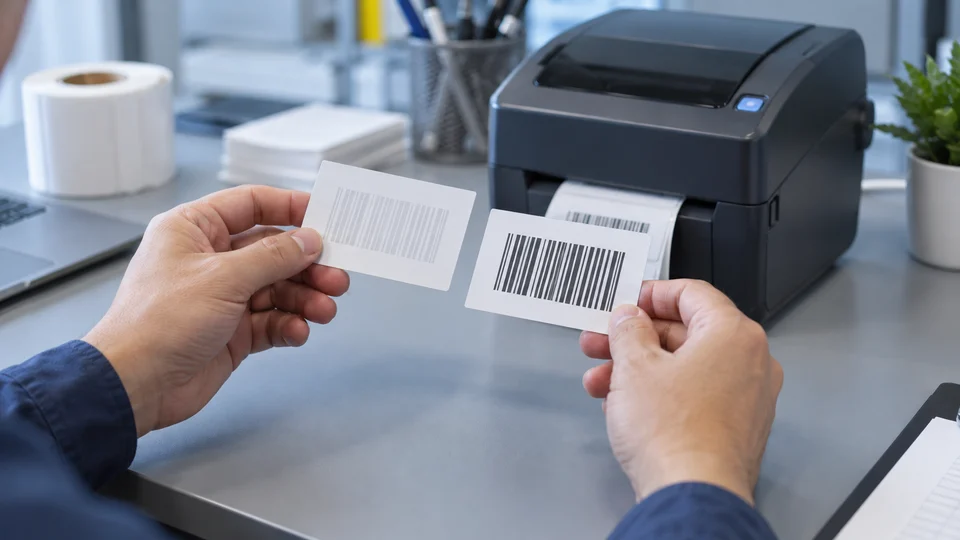
Print is too light or unclear

The darkness setting may be too low, the print speed too high, or the ribbon may not suit the label material. First increase the darkness or lower the speed, then check whether the ribbon type (wax, wax-resin, resin) suits this label.

Skipped labels, skewed or misaligned printing

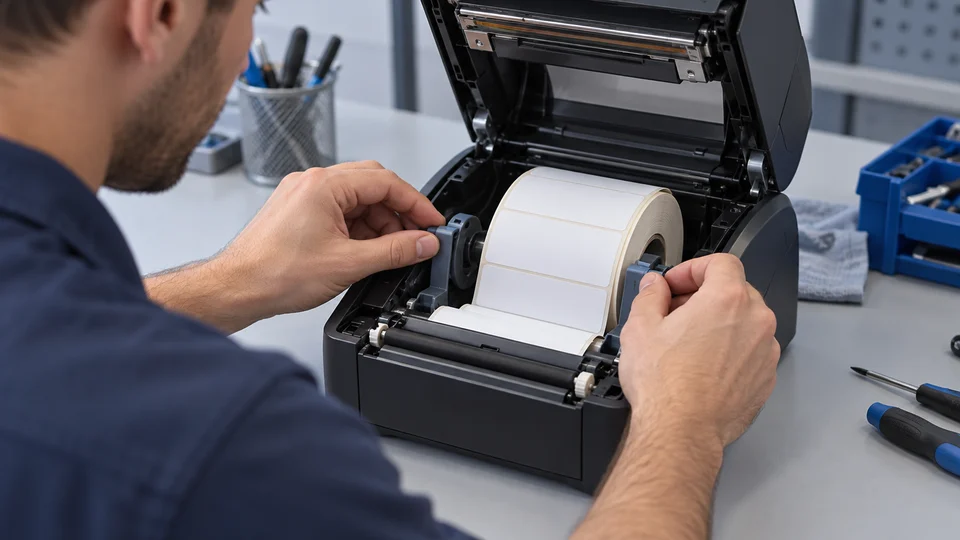
A common cause is not recalibrating the sensor after changing labels, or label guides not set snugly. Run label calibration again and adjust the guides; this usually fixes it.

Ribbon wrinkles or diagonal streaks in the printout

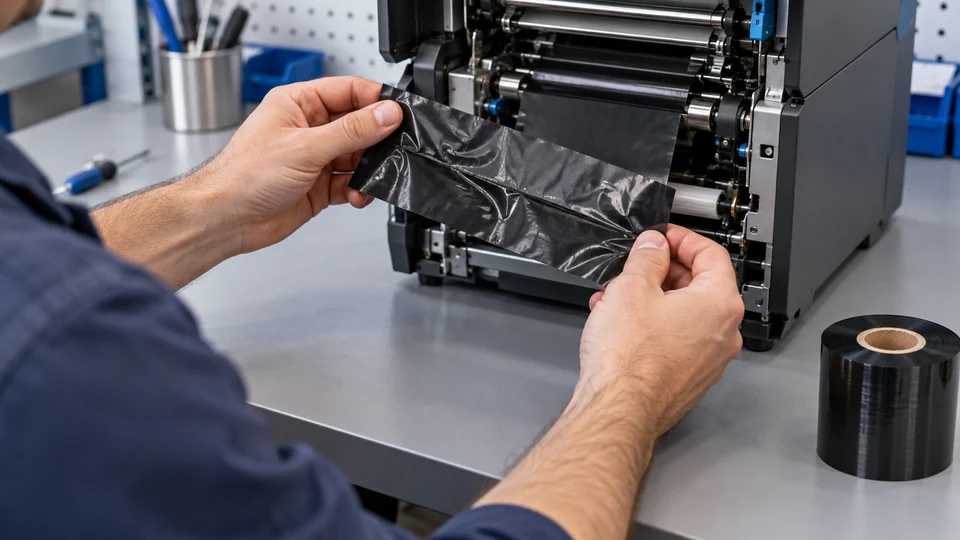
This can be caused by a skewed ribbon, a ribbon much narrower than the label, or uneven printhead pressure. Reinstall the ribbon and pull it flat, and make sure the ribbon is slightly wider than the label.

The computer sends a print job, but the printer does not respond

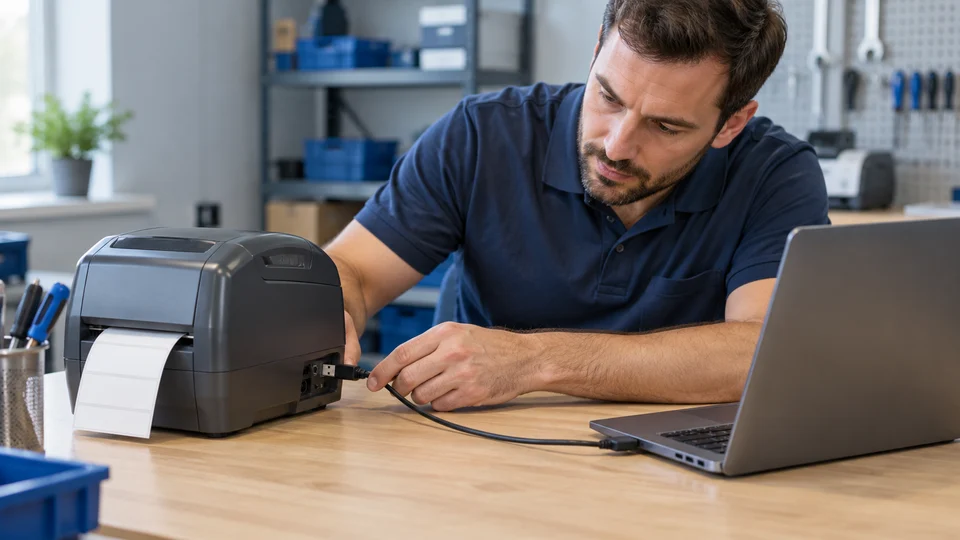
First check the cable or network connection and whether the printer is online, clear the print queue and restart. If that does not work, reinstall the driver, or try a different cable or a different computer.

The scanner cannot read barcodes

First try another barcode to tell whether the barcode itself is poorly printed or the scanner is the problem. The barcode symbology may also be disabled, or the distance or angle may be wrong. If necessary, restore factory defaults.

Things to try before sending it in

  1. RestartPower off, unplug for 10 seconds and power on again; for mobile computers, restart or try another battery.
  2. Check supplies and loadingCheck whether the labels or ribbon are loaded backwards, the ribbon's ink side faces the right way and the cover is fully closed.
  3. Clean the printhead and rollersGently wipe the printhead (after it cools) with a cleaning pen or a cotton swab with alcohol—many white lines and unclear prints are caused by dirt.
  4. Recalibrate the sensorAfter changing to labels of a different size or material, run the printer's label calibration (the method varies by model; see the manual or call us).
  5. Try another cable or computerFind out whether the problem is the machine or the cable, driver or computer settings.

Still not working? When you submit a repair request online, tell us which steps you have already tried so we can find the cause faster.

Warranty

Warranty period and coverage follow each manufacturer's policy and are stated in the quote. Please provide the serial number when requesting repair so we can check the warranty status.

Warranty period

Follows each manufacturer's terms and differs by brand and model; it is stated on the quotation. Wear parts such as printheads and platen rollers usually have different warranty conditions from the printer itself (e.g. based on time or print length), as set by the manufacturer.

Warranty coverage

Failures not caused by the user, occurring under normal use.

Generally not covered

Damage caused by drops, impacts, liquid ingress, etc.; printhead wear caused by unsuitable consumables; self-disassembly, self-repair or modification; lightning or power abnormalities; normal wear of wear parts. The final decision follows each manufacturer's warranty terms.

Repair under warranty

The process is the same as a regular repair request: submit a repair request online or call us first. Pickup and return arrangements will be explained case by case.

Extended warranty

Some brands offer extended warranty plans; you can ask about them when you buy.

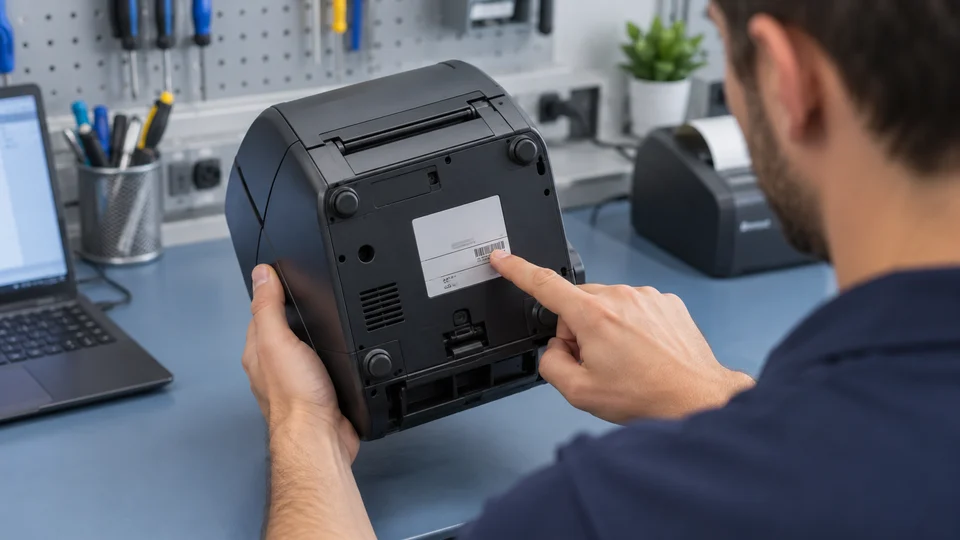
The serial number sticker is usually on the bottom or back of the unit
How to check warrantyWhen you request a repair, provide the serial number (S/N, usually on a label on the bottom or back of the unit) and the purchase date or invoice. We will help confirm the warranty status.

Parts

PartsWhen to replace
PrintheadWhite lines or missing characters in the same position after cleaning, or consistently uneven print. The printhead is the most frequently replaced wear part of a printer.
Platen roller (rubber roller)Surface glazed, cracked or covered in adhesive residue that cannot be cleaned off, causing media slippage, skipped labels or skewed printing.
Cutter, peelerDoes not cut through, uneven cuts, or labels do not peel off.
SensorsStill cannot detect the label gap or black mark after calibration.
Mainboard, power supplyDoes not power on at all, freezes intermittently, or cannot connect.
Scanner cable, cradleIntermittent operation, disconnections, does not charge.
Mobile computer battery, charging cradleBattery does not last long or is swollen, or the charging cradle has poor contact.

When requesting a quote, please provide the brand, model and serial number; for printheads, also tell us the resolution (203 / 300 / 600 dpi) and print width. Part specifications, availability and lead time will be stated in the quotation.

Routine maintenance

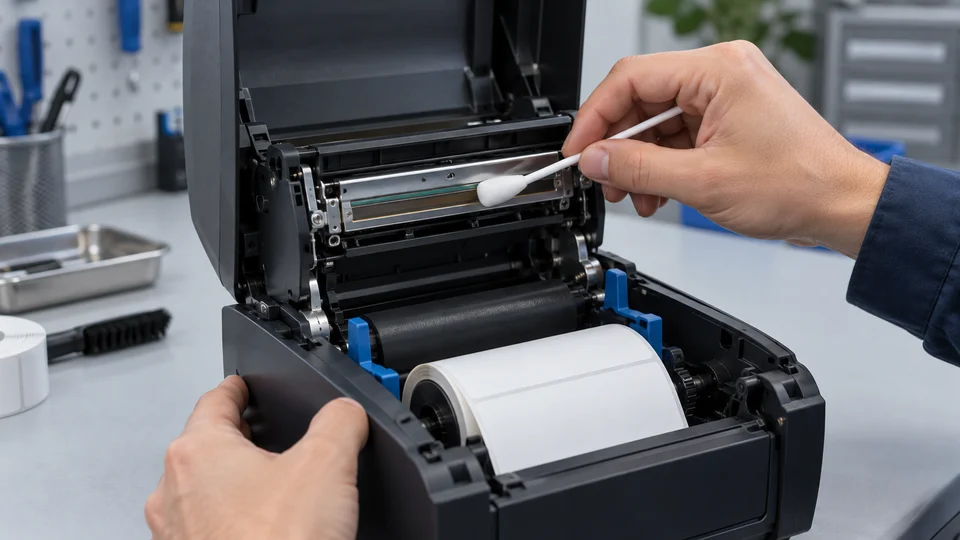
Open the top cover and wipe the printhead in one direction with a cleaning pen
Open the top cover, wait for the printhead to cool down, then wipe it in one direction with a cleaning pen.
  • Clean the printhead

    We recommend cleaning it each time you change a ribbon or label roll. Turn off the printer, wait for the printhead to cool, then wipe gently in one direction with a cleaning pen or a swab moistened with isopropyl alcohol (industrial alcohol).

  • Clean the rollers and media path

    Regularly wipe off adhesive residue, paper dust and dirt to reduce skipped labels and skewed printing.

  • Clean the sensors

    Remove paper dust with an air blower or a dry swab, and remember to recalibrate after changing labels.

  • Use the right consumables

    The ribbon should be slightly wider than the label so the printhead does not rub directly against the label; avoid running darkness at maximum for long periods to extend printhead life.

  • Placement

    Avoid locations with heavy dust, high temperature, humidity or direct sunlight; direct thermal labels are also sensitive to heat and light.

  • Mobile computers and scanners

    Avoid leaving batteries fully discharged for long periods; clean a dirty scan window with a soft cloth.

Cleaning pens, cleaning cards and other maintenance supplies can be quoted together with labels and ribbons. If you have multiple devices that need regular maintenance, ask us as well.

Discontinued models

Discontinued does not mean unrepairable

After a manufacturer stops selling a model, it usually still provides parts and repair support for a period of time, as announced by each manufacturer. You can submit a repair inquiry for any discontinued model.

Repairability depends on parts

We will reply after checking parts availability. If parts are no longer available, we will tell you directly and suggest a replacement model. If the repair cost is close to buying new, we will also explain this so you can compare.

Consumables are usually still available

Labels and ribbons follow common specifications, so suitable consumables are usually still available for discontinued models. The discontinued model pages on this site also list the manufacturer's recommended replacement models.

Can't solve it? Leave it to us

Fill in the online repair form, or call, email or add us on LINE. No. 193, Daoxiang Rd., Beitou Dist., Taipei City 112016, Taiwan (R.O.C.).

Test site · content under review